

Discussion Board
Pawtograder’s discussion board feature allows students and staff to discuss course content and ask questions. It is not intended to be a replacement for office hours, although there is an option to format the post as a question that needs an answer (as opposed to a “note” that does not need an answer). Posts are formatted as Markdown, and support drag-and-drop attachments and images. You can easily add images to your posts by dragging and dropping them directly into the editor, making it simple to share screenshots, diagrams, or other visual content.Discussion Board Layout
The discussion board features a feed-based layout with helpful sidebar widgets: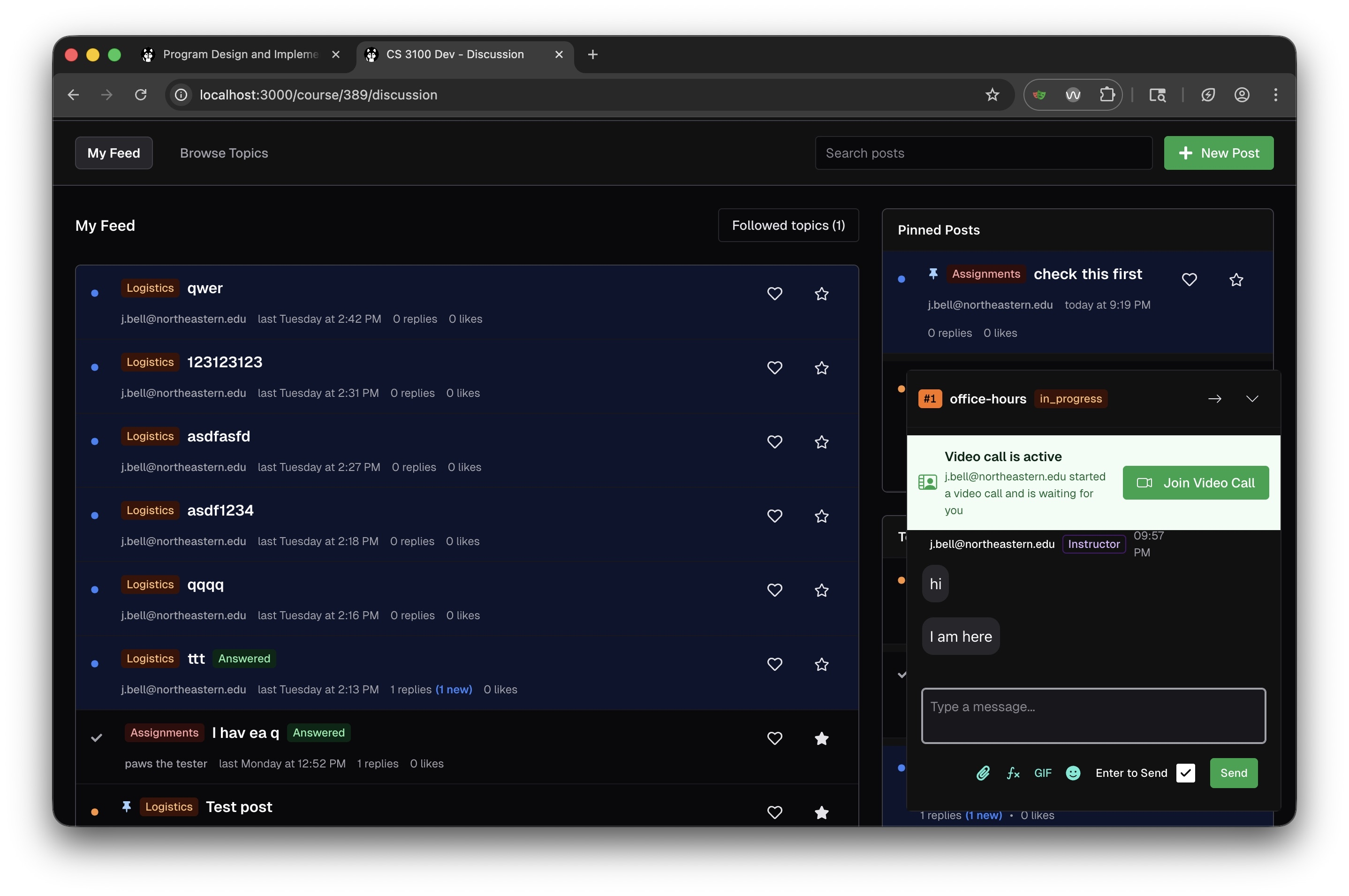
Feed Navigation
- My Feed: Your personalized view of posts, showing content from topics you follow and posts you’ve interacted with
- Browse Topics: Explore all discussion topics organized by category
- Followed topics: Filter to show only posts from categories you’re following
Pinned Posts
The sidebar displays Pinned Posts: important threads highlighted by your instructors. These typically include:- Frequently asked questions
- Important announcements
- Helpful resources and guides
Top Posts This Week
The sidebar also shows Top Posts This Week, highlighting the most engaging discussions based on community activity.Active Help Request Widget
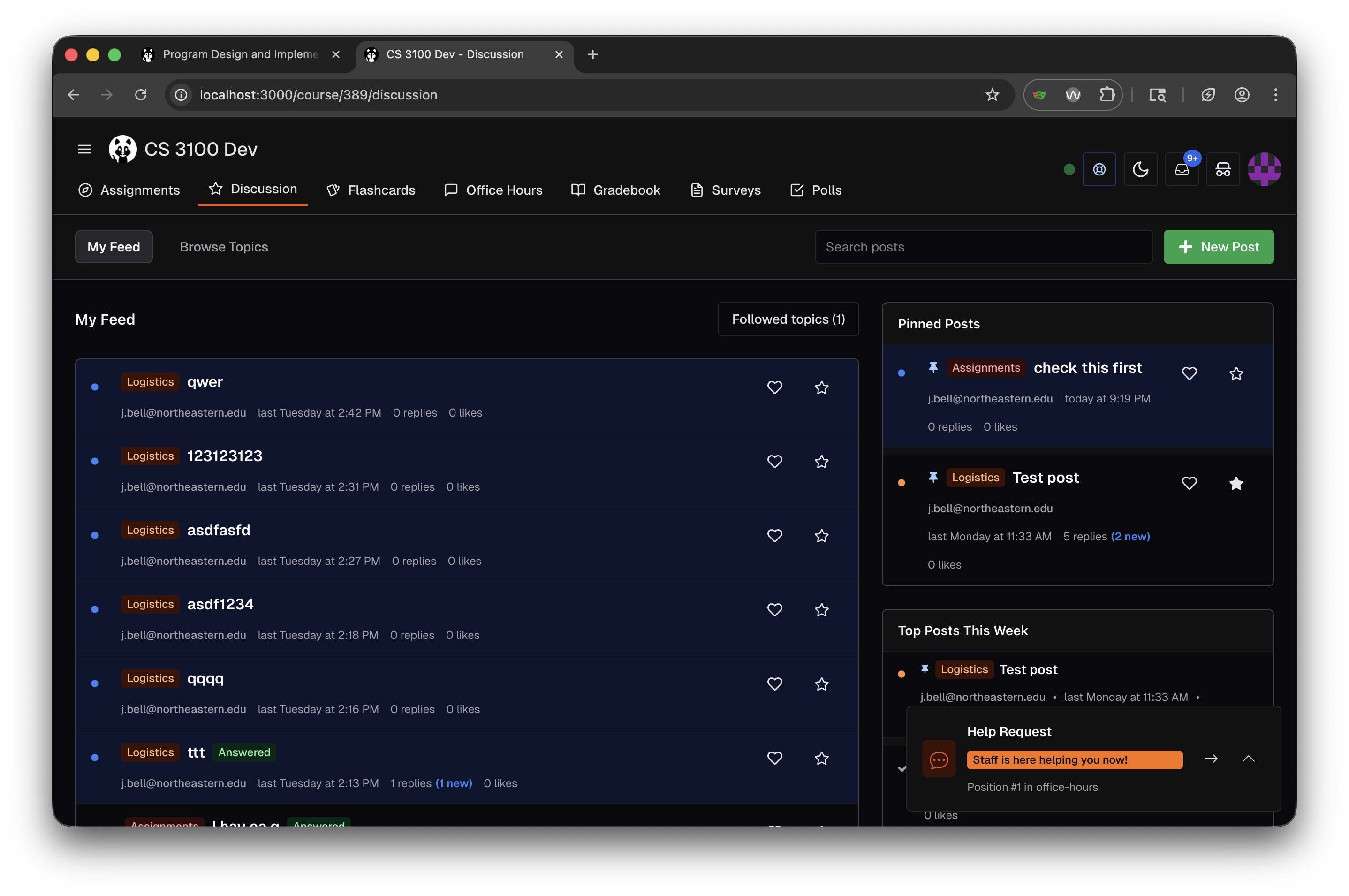
When you have an active help request in office hours, it follows you around the site! A widget appears in the sidebar showing:- Your current position in the queue
- Status updates (e.g., “Staff is here helping you now!”)
- Video call notifications when a TA starts a video chat
- A Join Video Call button for instant access
Post Visibility and Identity
Posts can be shared with the entire class, or with course staff only. Each user in a class has a pseudonym, and can choose to use their real name or their pseudonym. Staff can always see the real name of a user. Students can edit their own posts, and staff can edit any post.Notifications
By default, users do not get notifications for new posts, but can optionally “watch” a post to receive notifications when the post is updated or receives a new reply. Interacting with a post (e.g. replying to it) will automatically watch the post.Creating a New Post
Click the + New Post button in the top right to create a new discussion thread. When creating a post:- Select a topic: Choose a category to help organize your post
- Choose visibility: Share with the entire class or staff only
- Select identity: Post with your real name or pseudonym
- Mark as question or note: Questions indicate you need an answer; notes are for sharing information
Engaging with Posts
Each post displays helpful metadata:- Topic tag: Color-coded category (e.g., “Logistics”, “Assignments”)
- Author: Who created the post
- Timestamp: When it was posted
- Replies: Number of responses, with “(X new)” indicators for unread replies
- Likes: Community engagement—click the heart to show appreciation
- Answered badge: Indicates questions that have been resolved
Karma System
The discussion board includes a karma system that rewards helpful contributions. You earn karma points by:- Creating helpful posts that receive likes
- Providing answers that are marked as solving questions
- Engaging constructively with the community