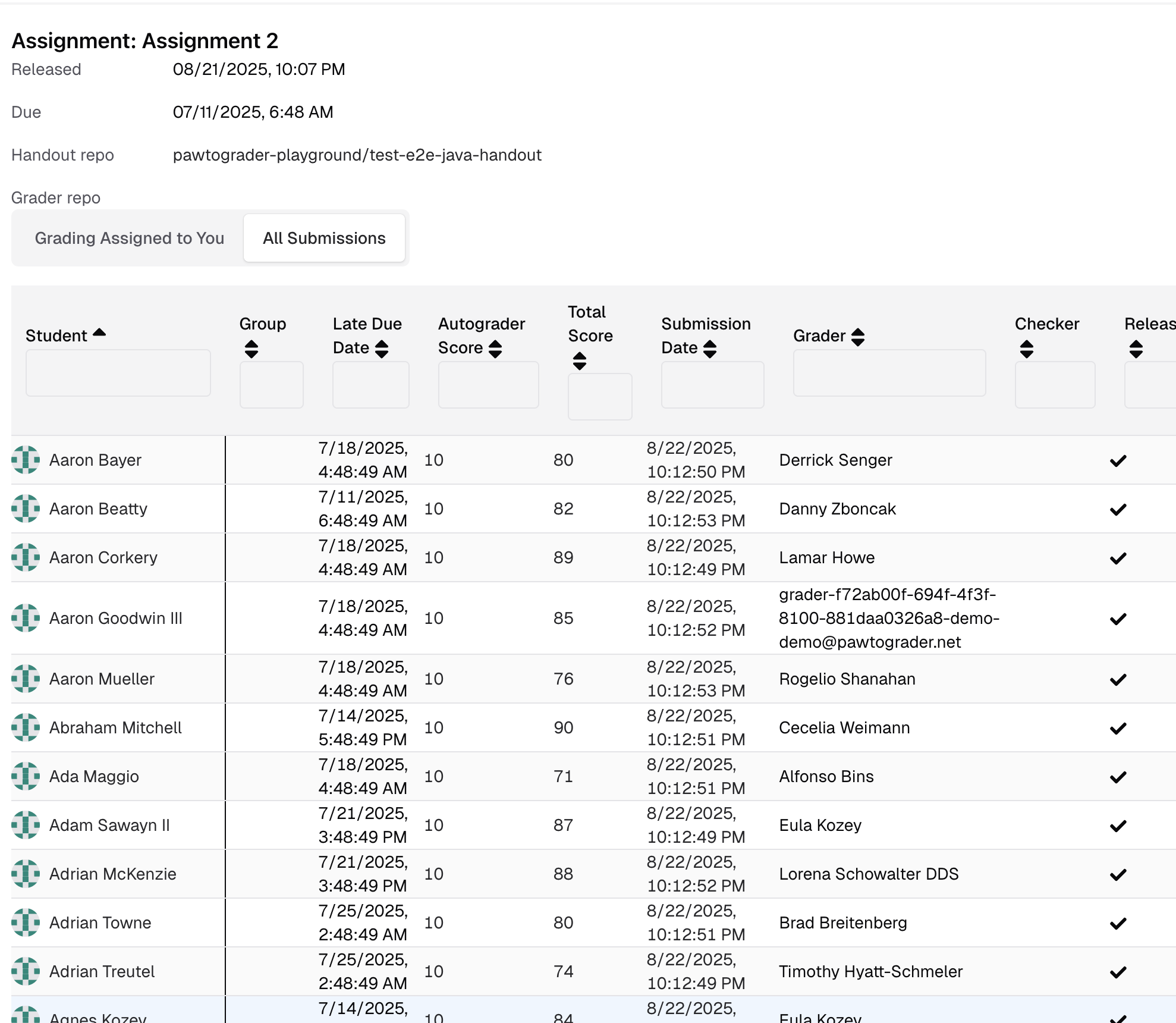
Handgrading
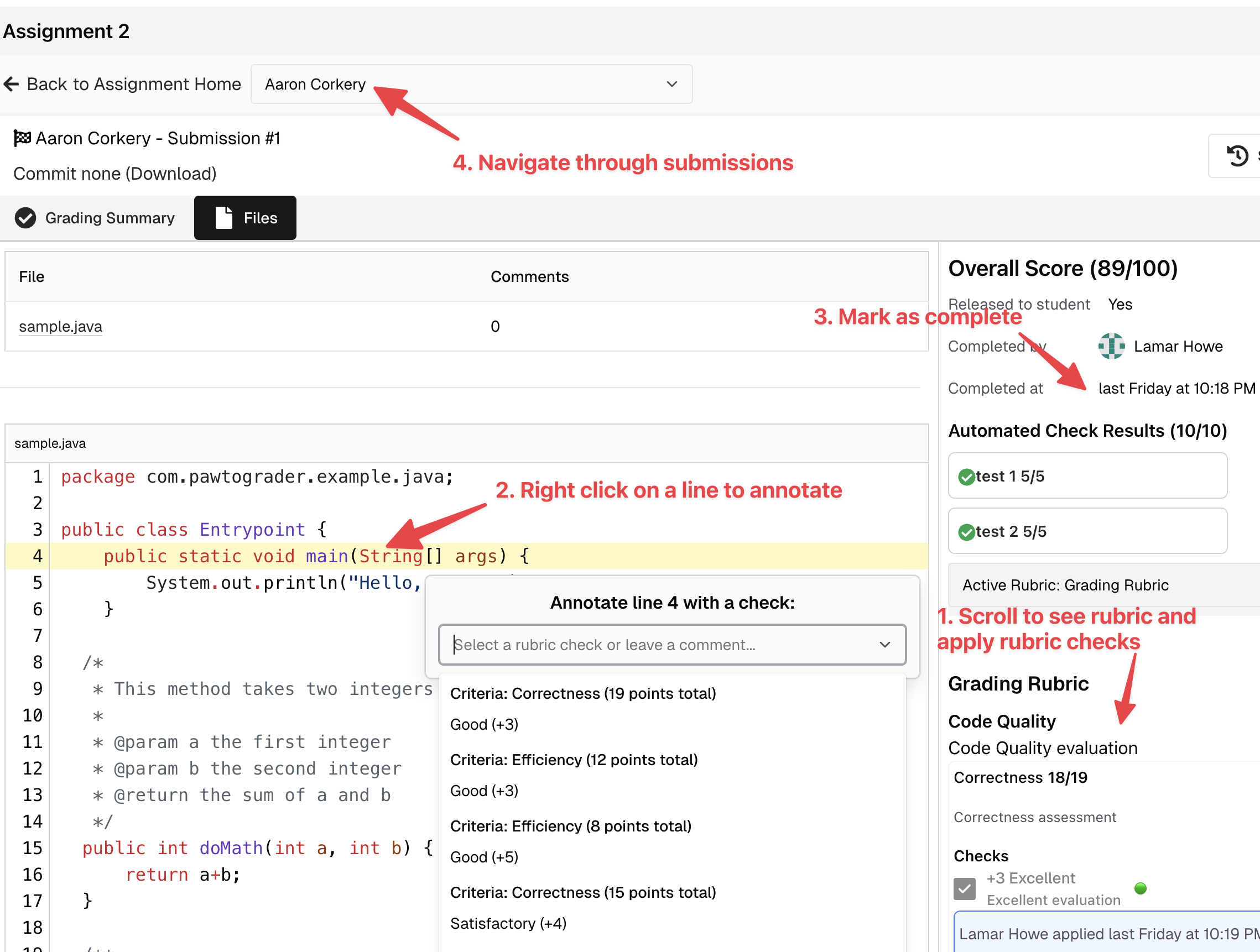
Instructors can define multiple handgrading rubrics for each assignment, although the most typical mechanism is to simply use the “Grading Rubric” (which, combined with the autograder score, is used to compute the score for each submission). Once all required rubric checks are done, the grader can click the “Complete Review” button to confirm that they have completed grading. This does not release the review to the student, but indicates to the instructor that it could be released (at the instructor’s discretion).Grading Submissions That You Have Been Assigned
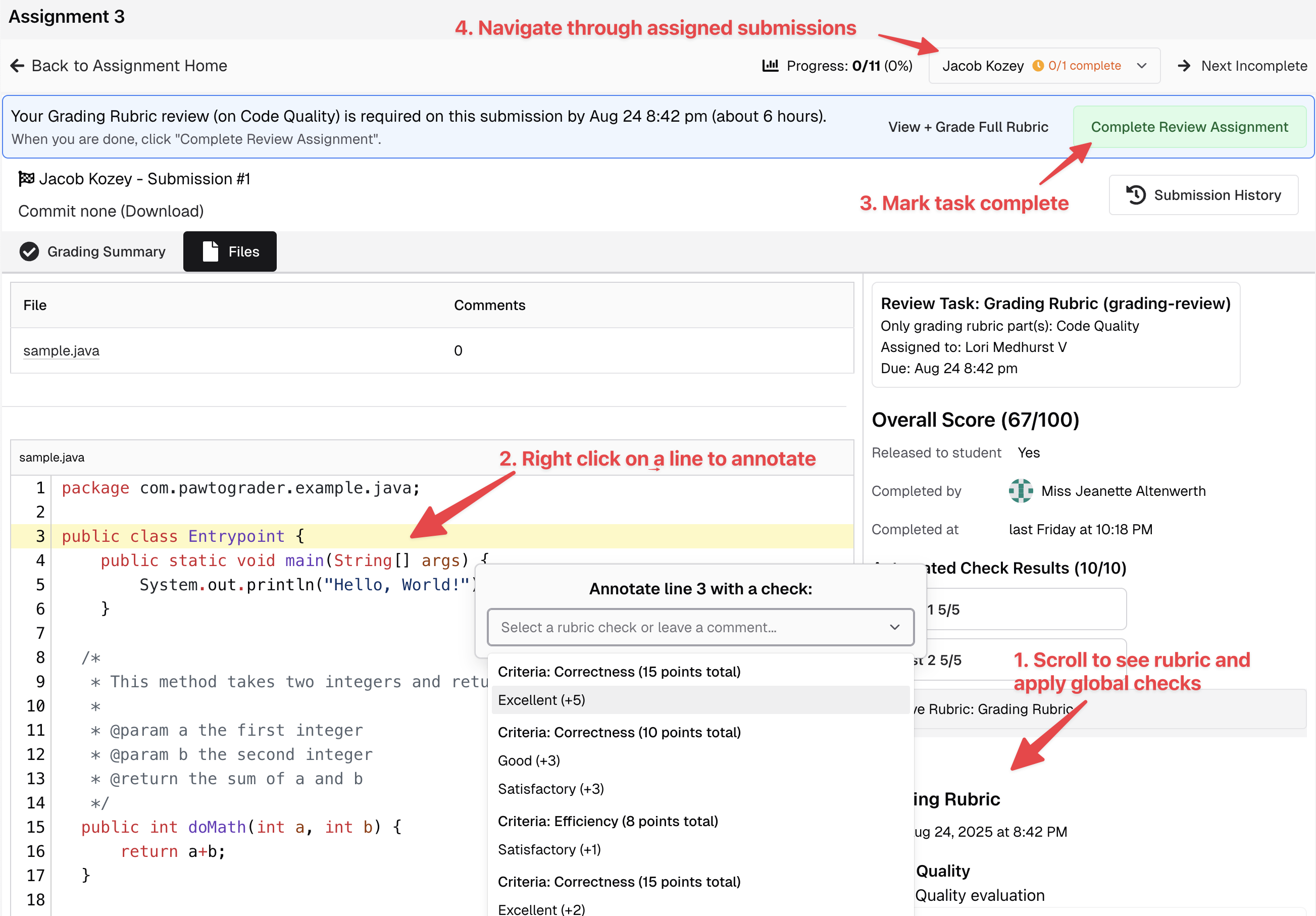
When you have submissions assigned to grade, you will see a summary of them on the assignment’s landing page.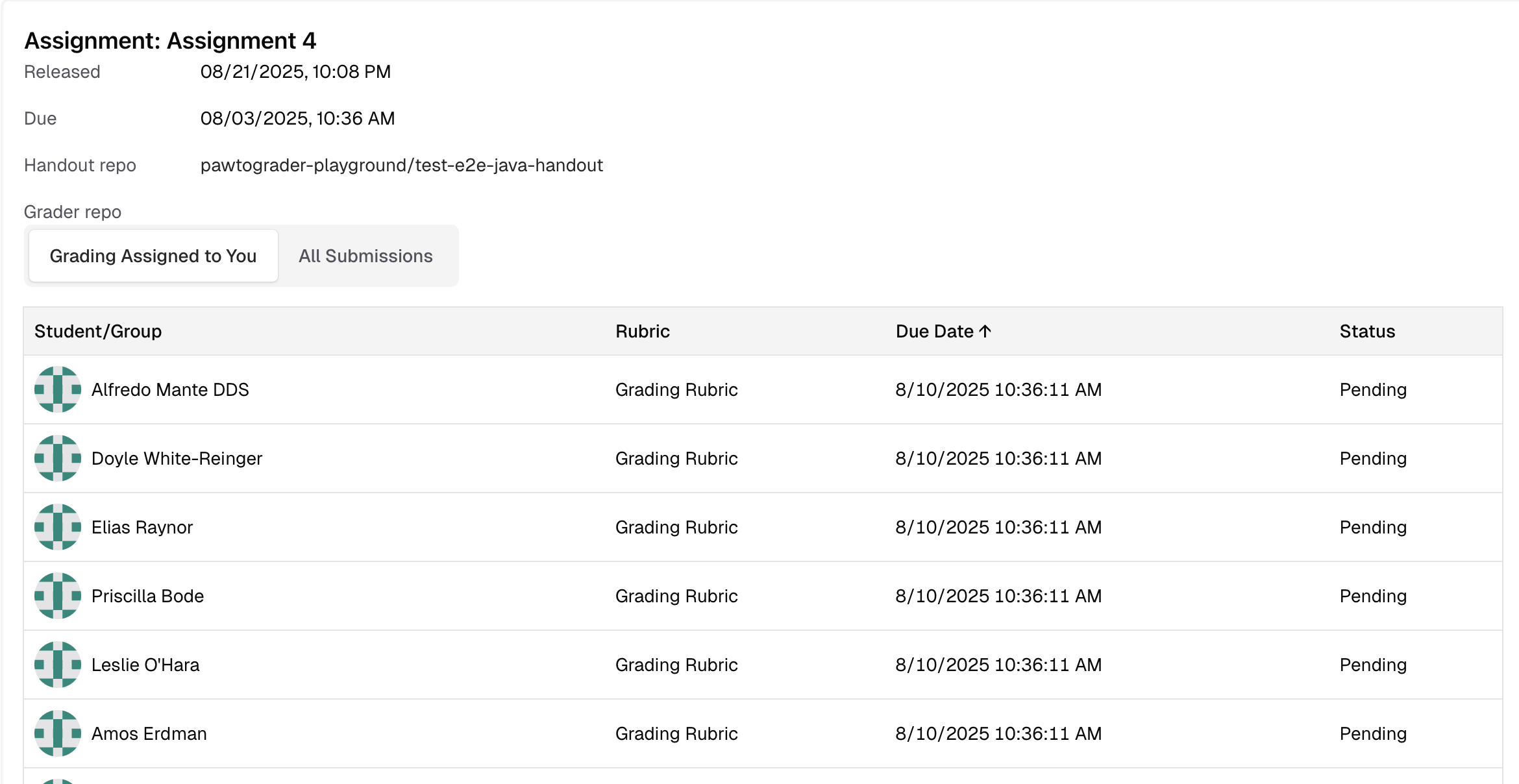
Pinning Errors
When grading submissions, you can pin specific errors or issues to make them globally visible across all submissions. This is useful for tracking common mistakes or patterns that appear across multiple student submissions. Pinned errors remain visible as you navigate between different submissions, helping you maintain consistency in grading and identify widespread issues that may need to be addressed with the entire class.Grading Submissions Without Assignments
If you have not been assigned to grade any submissions, you will see a list of all submissions on the assignment’s landing page.